How to apply College TRB Exam?
We, Professor Academy, will walk you through a clear, step-by-step procedure in this blog on how to apply online for the TN TRB Assistant Professor Exam — from locating the Apply Online link on the TRB website to submitting your final application.
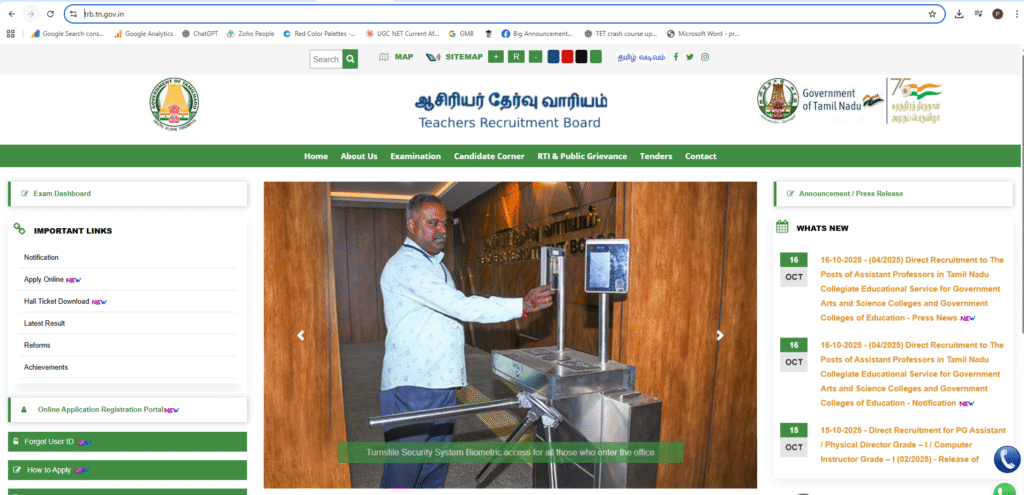
Visit the official website https://trb.tn.gov.in/.
On the left-hand side of the homepage, click on the “Apply Online” option.
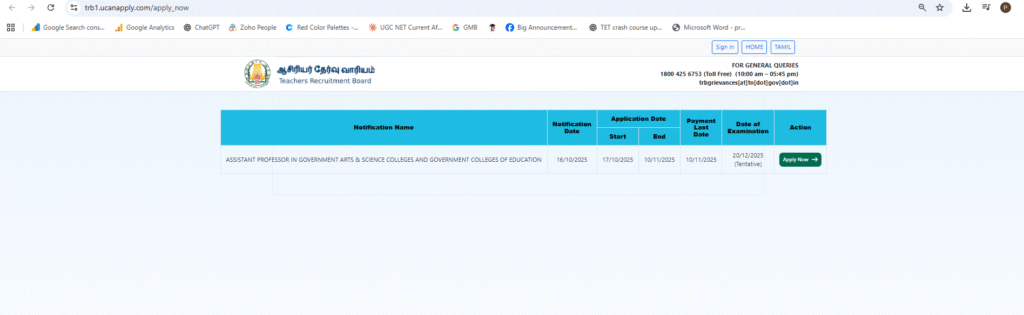
You will be redirected to the application dashboard at
https://trb1.ucanapply.com/apply_now
Click on the “Apply Now” button.
A new page will open where you need to enter your Email ID and Mobile Number, then click Submit to proceed.
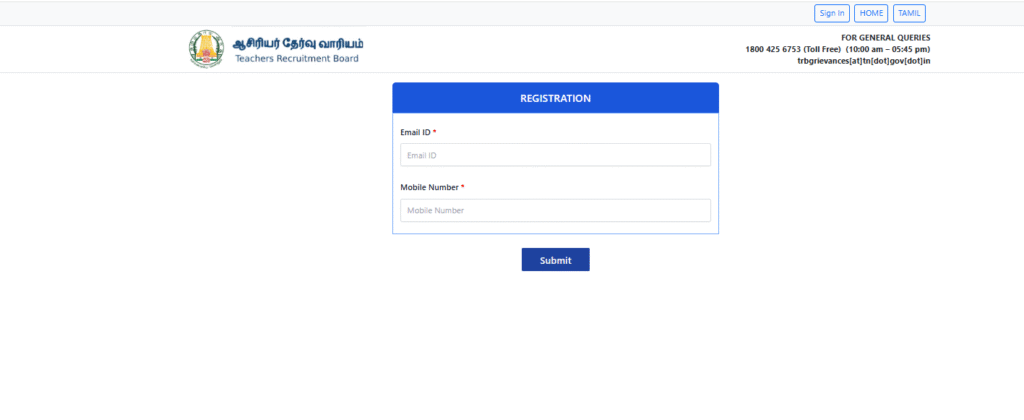
While entering your Email ID and Mobile Number, make sure the details are accurate and active, as all future communications and login credentials will be sent to them.
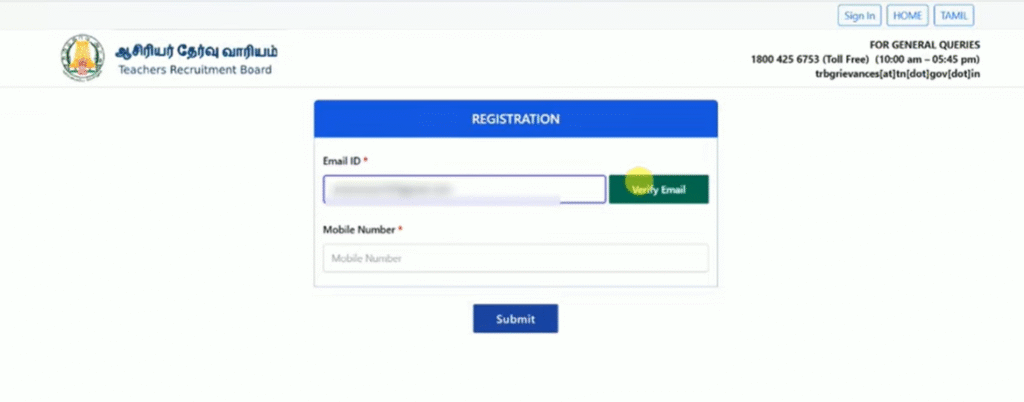
First, enter your Email ID — an OTP will be sent to this address for verification. Click on “Yes, Send OTP” to receive it. At this stage, you’ll also have the option to change your email ID if needed.
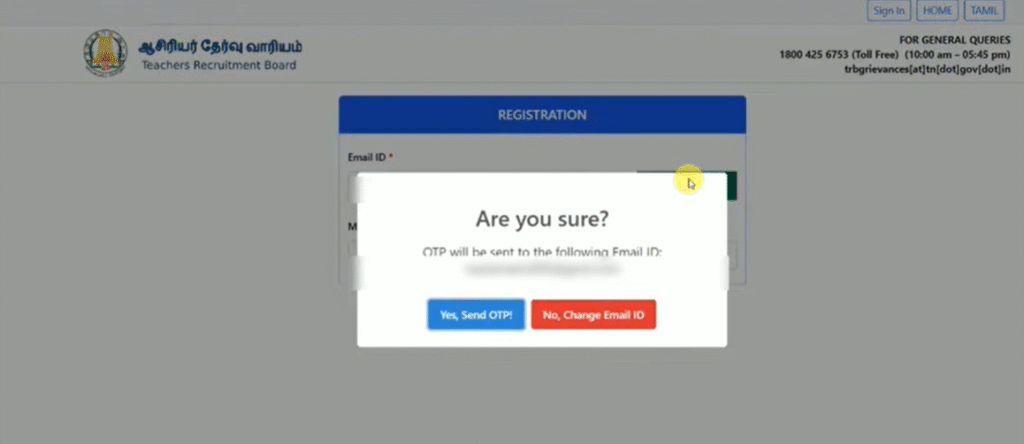
If you click the “Send OTP” option, you will receive an email containing the OTP. If you don’t find it in your inbox, check your Spam or Junk folder. Once you receive the email, enter the OTP in the given field and click “Verify” to complete the verification process.
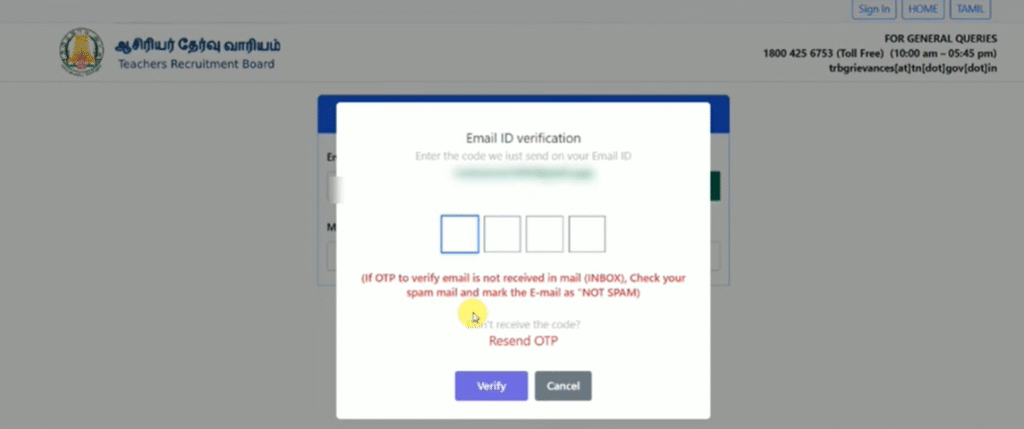
After clicking “Verify,” a confirmation will appear indicating that your Email ID has been successfully verified.
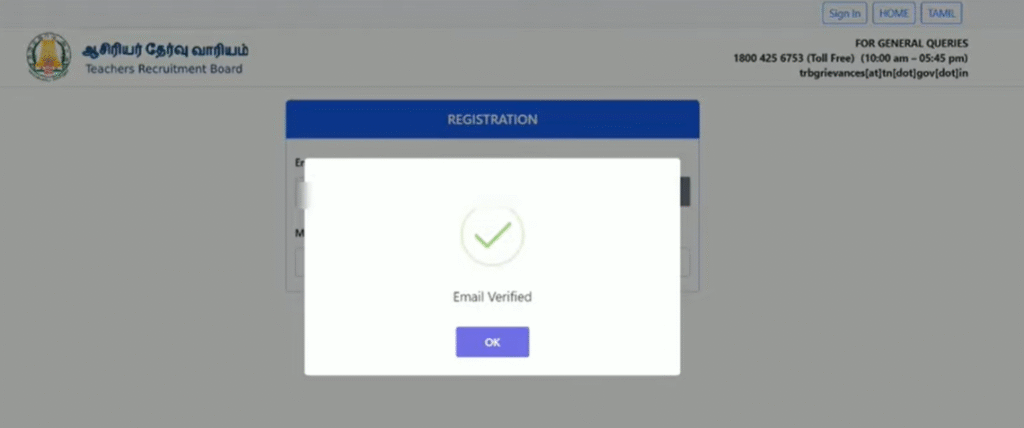
Follow the same process for mobile number verification:
Enter your Mobile Number and click on the “Verify Mobile” button to receive the OTP for verification.
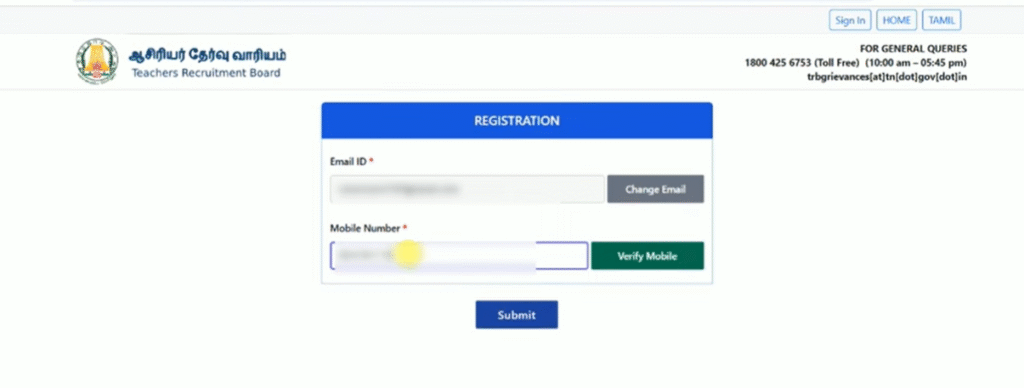
An OTP will now be sent to the mobile number you provided for verification.
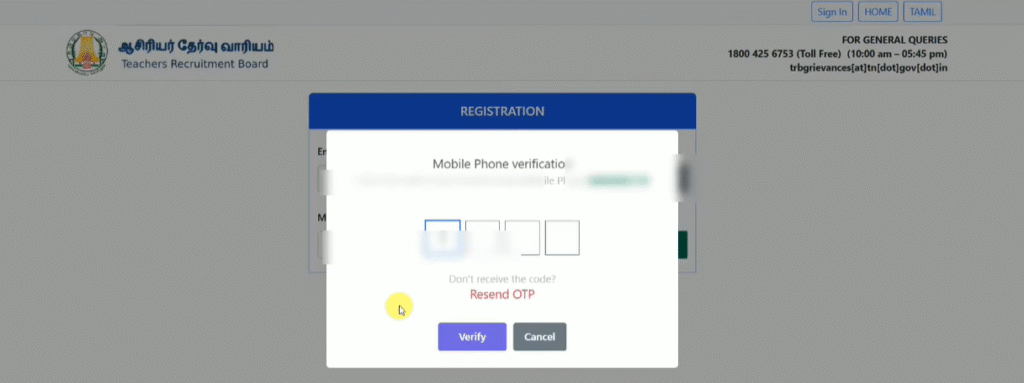
Enter that OTP and click verify
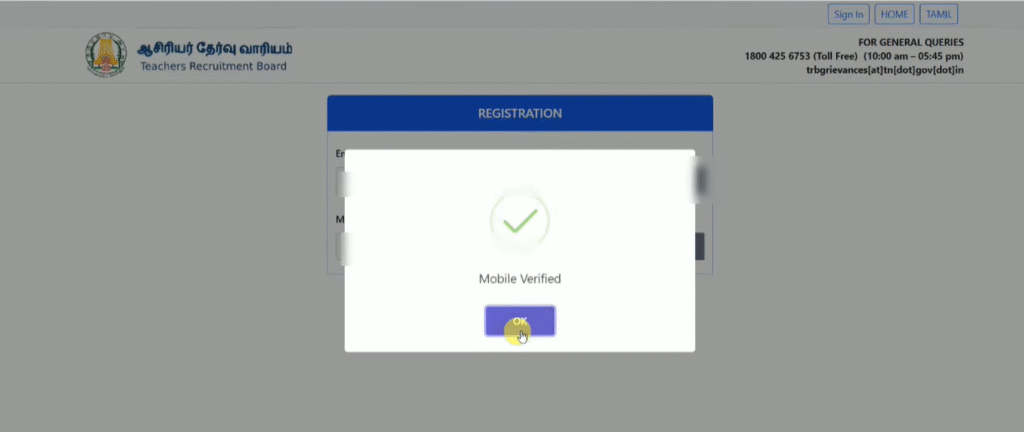
Once both Email and Mobile Number verifications are completed, you will see that your mobile number is verified. Now, click the “Submit” button to proceed.
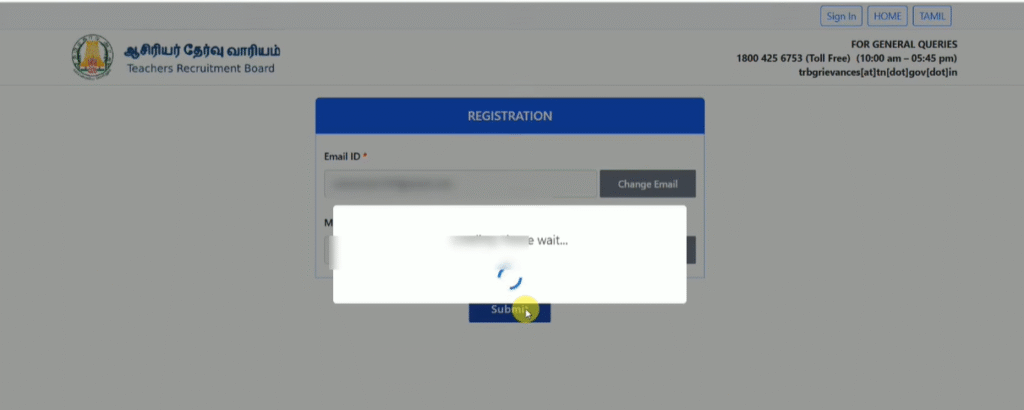
It may take a few moments for your account to be created. Once ready, a message will appear stating “Basic Registration has been completed.” Click OK to continue.
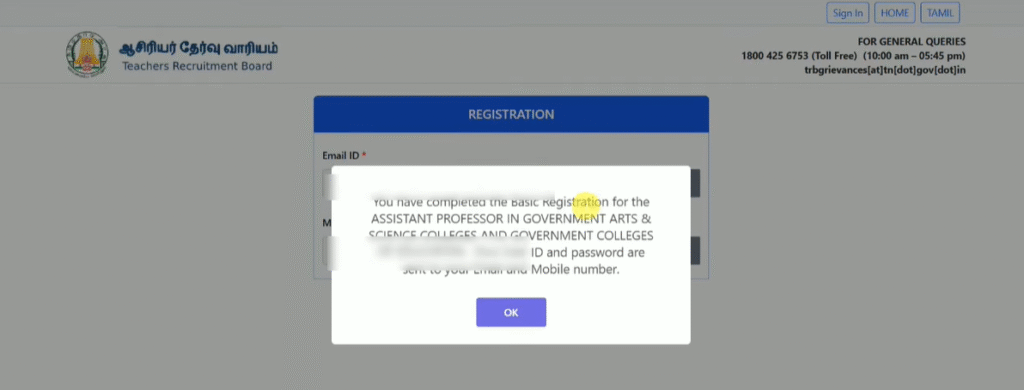
In the next step, you will see that your User ID and Password have been sent to both your Email ID and Mobile Number. Make sure to save these credentials for future reference.
After this, you will be redirected to your Candidate Dashboard.
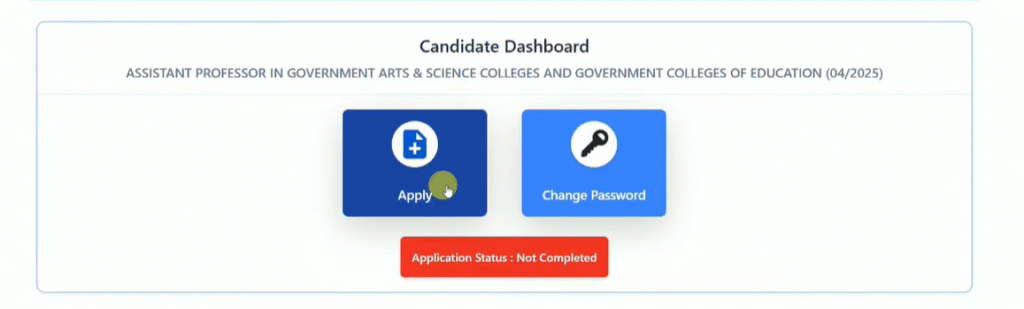
In your Candidate Dashboard, click on the “Apply” button. This will take you to the application section to start filling out your details.
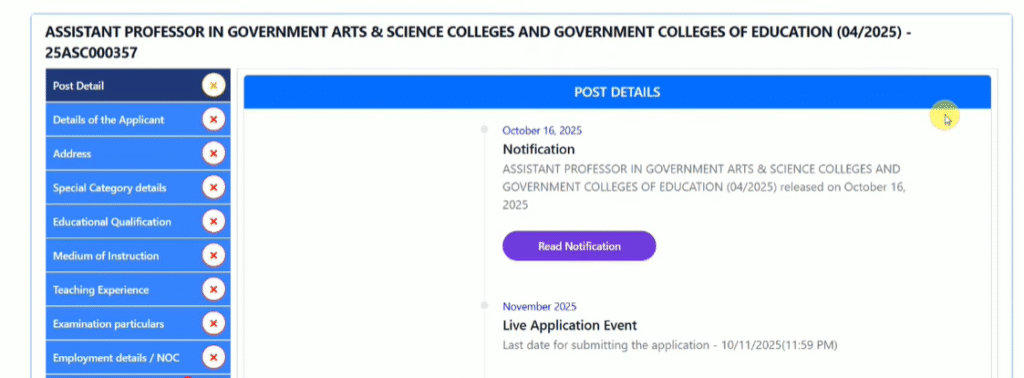
Note: If you had applied for the 2019 or 2024 TN TRB exam, you are eligible for a fee concession. In the application form, locate this section and select “Yes” if you have already appeared, or “No” if you have not.
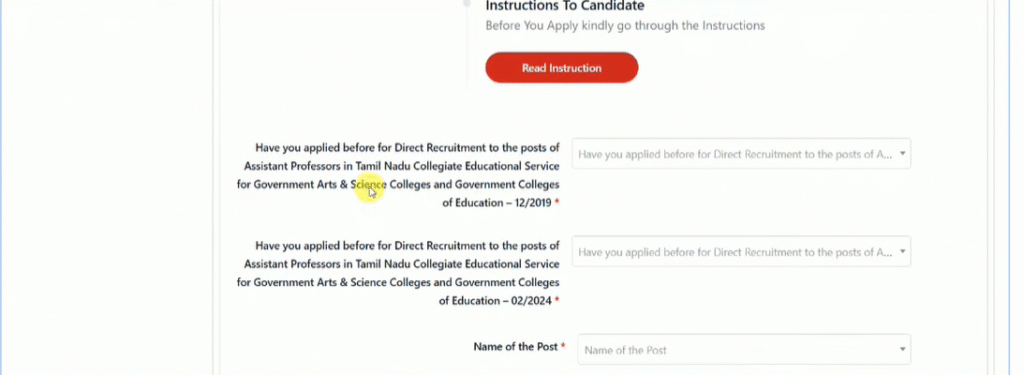
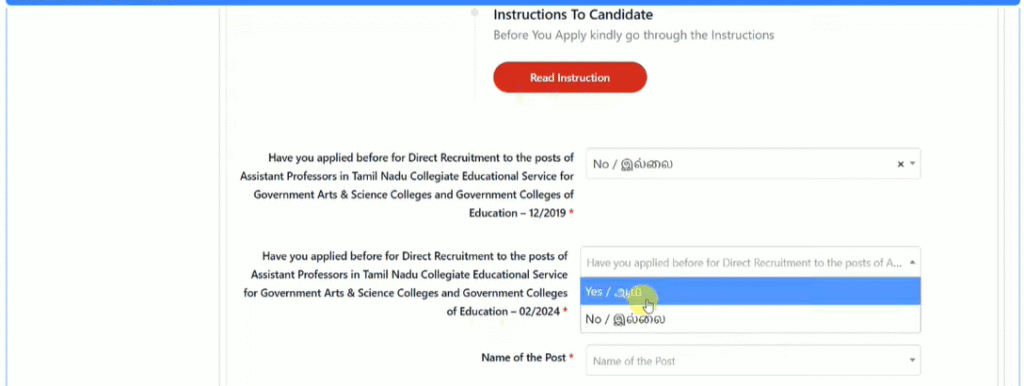
Next, select the name of the post you are applying for from the list provided.
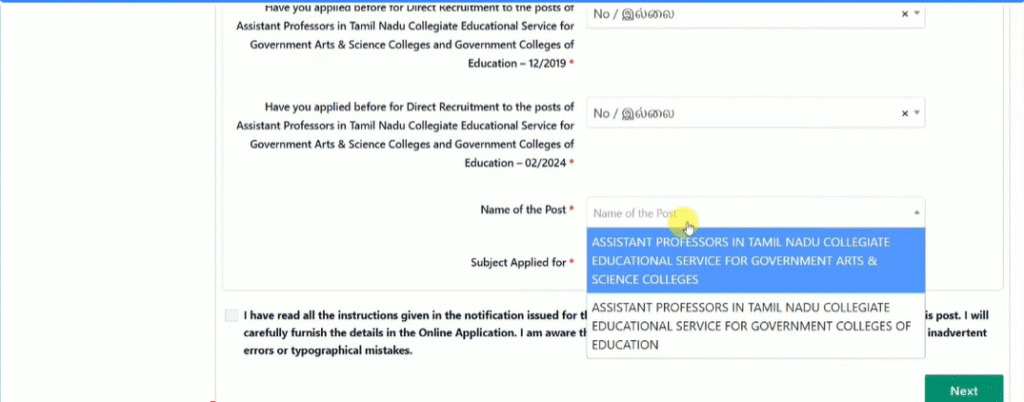
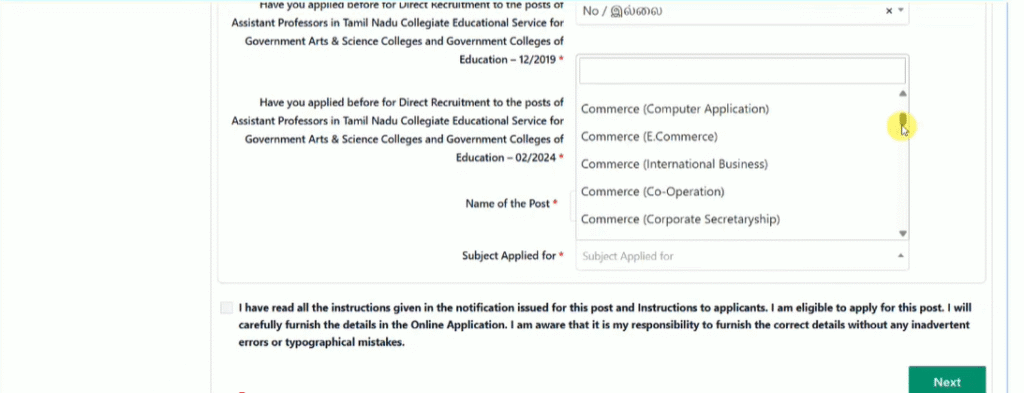
Here, you can choose the post for either a Government Arts and Science College or an Education College. After that, select the subject you wish to apply for.
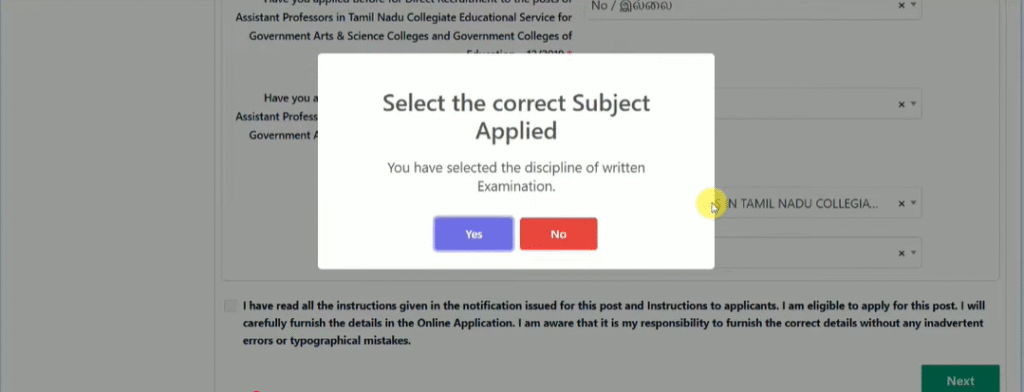
After selecting your subject, a prompt will appear asking you to confirm your choice. If you are sure about the subject, click “Yes” to proceed.
Next, scroll to the bottom, click on the Terms and Conditions, and then click “Next.”
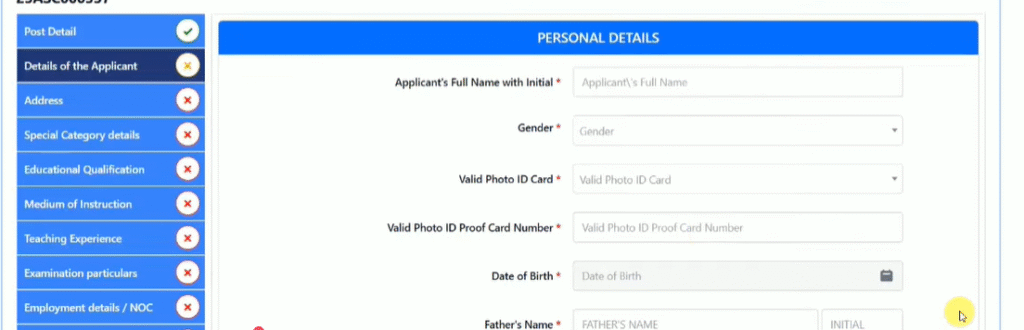
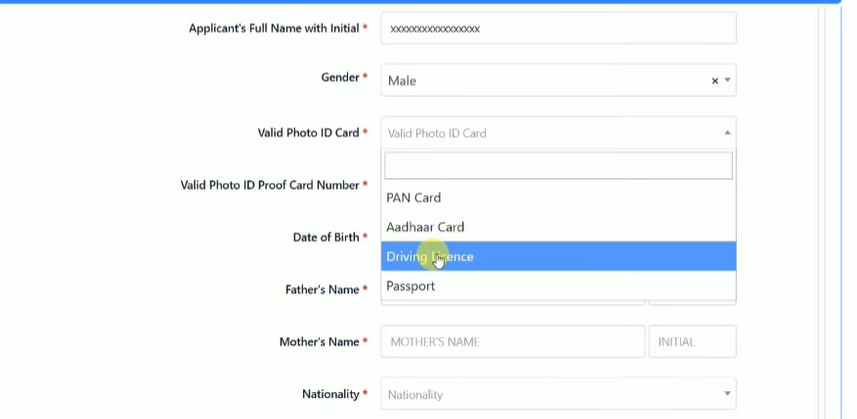
You will be redirected to a page where you need to enter your personal details.
Enter your Full Name with Initial.
Select your Gender: Male, Female, or Transgender.
Choose your Valid ID Proof and enter the corresponding number (Pan, Aadhaar, Driving License, or Passport).
Enter your Date of Birth.
Fill in your Father’s Name, Mother’s Name, Nationality, Religion, and Community details.
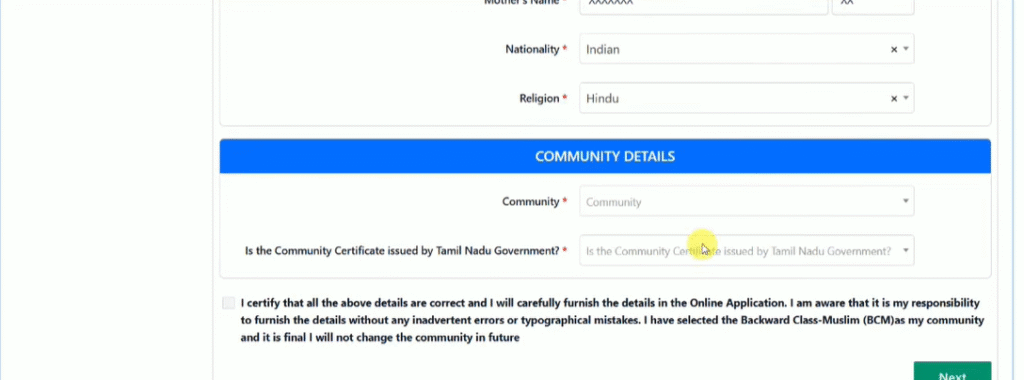
- In the Community section, you need to fill the following details:
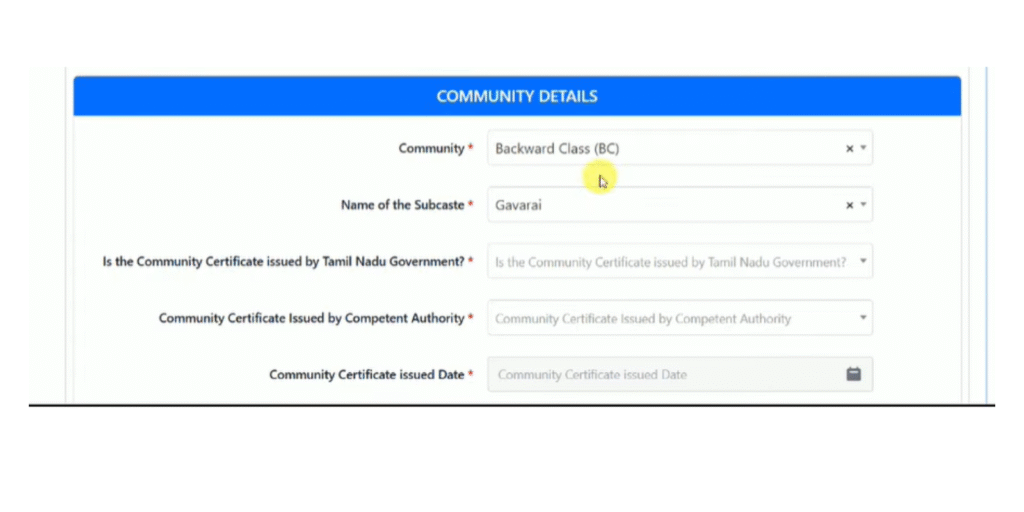
Finally, tick the box at the end and click the “Next” button.
You will then be asked to enter your address details, including:
- City/Village
- State
- District
- Pincode
- Full Address
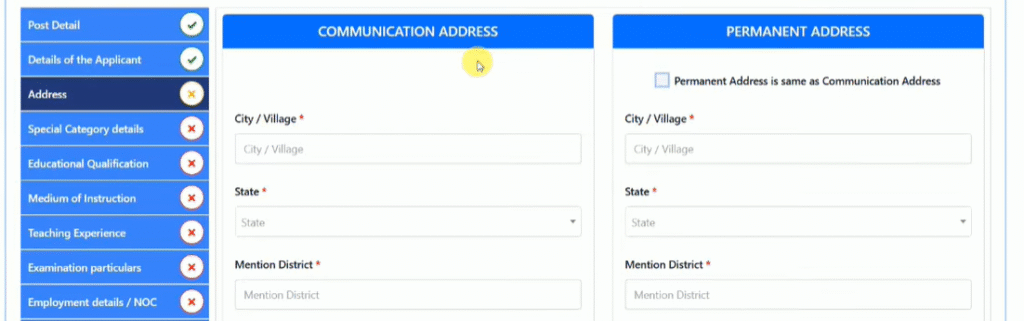
Fill in all the address details. If your Communication Address and Permanent Address are the same, tick the box indicating “Same as Communication Address.”
Once all details are filled, scroll down, tick the Terms and Conditions box, and click “Next.”
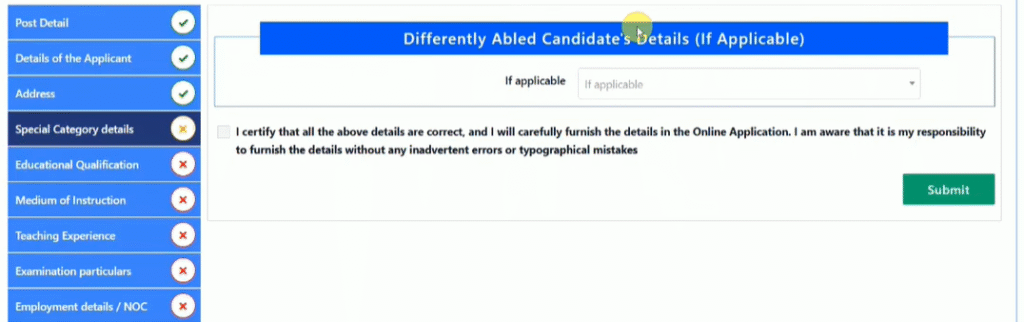
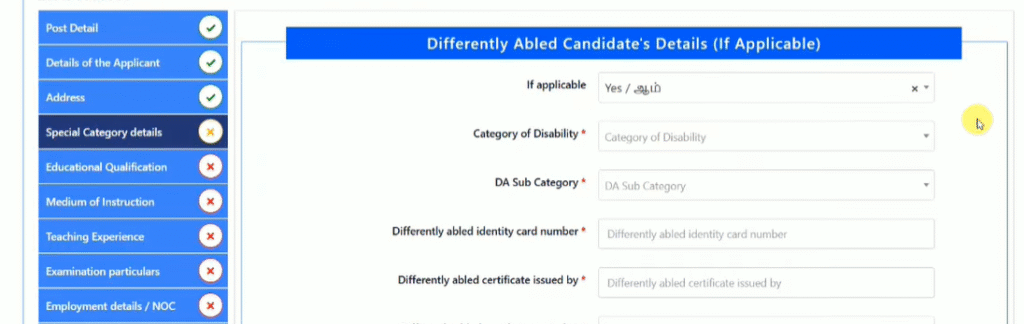
If you are a PWD (Persons with Disabilities) candidate, select “Yes”, provide the required details, and then click “Submit.”
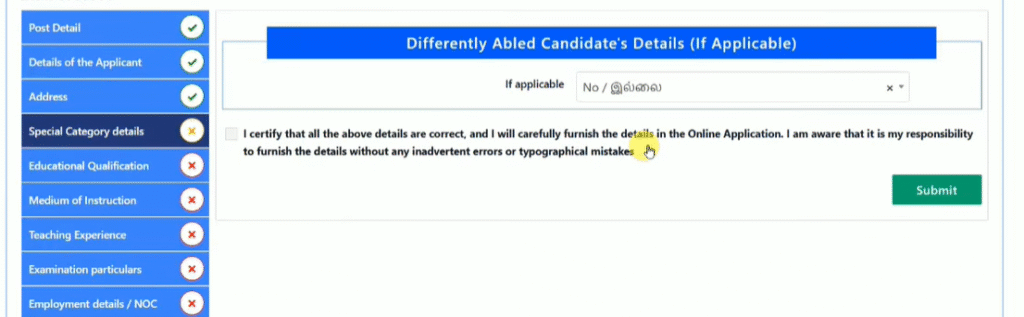
If not applicable, click no
Tick the Terms and Conditions box below and click “Submit.”
Next, you will need to select your Educational Qualification.
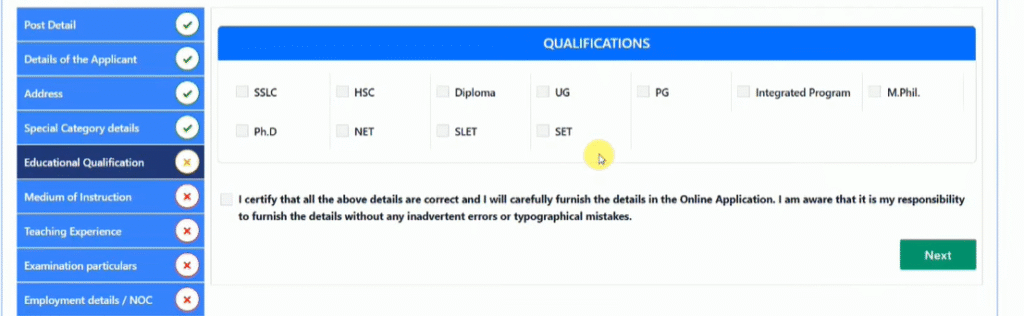
Here, select your educational qualifications: SSLC, HSC, Diploma (if applicable), UG, and PG.
Also, choose the basis for applying to this exam: Ph.D., NET, SLET, or SET.
Then, enter your qualification details one by one as required.
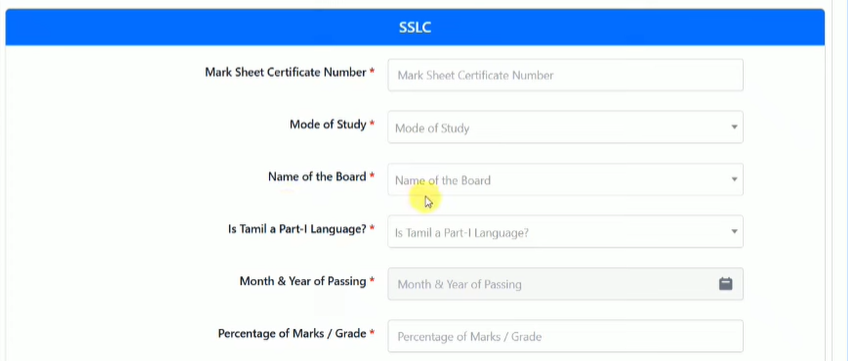
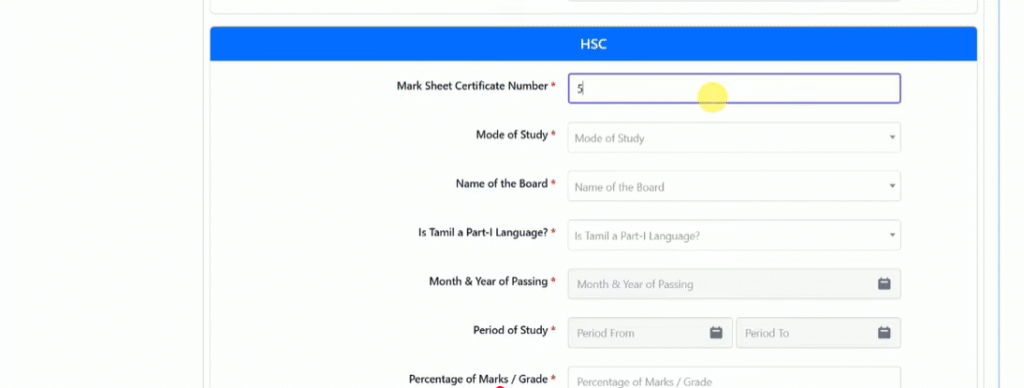
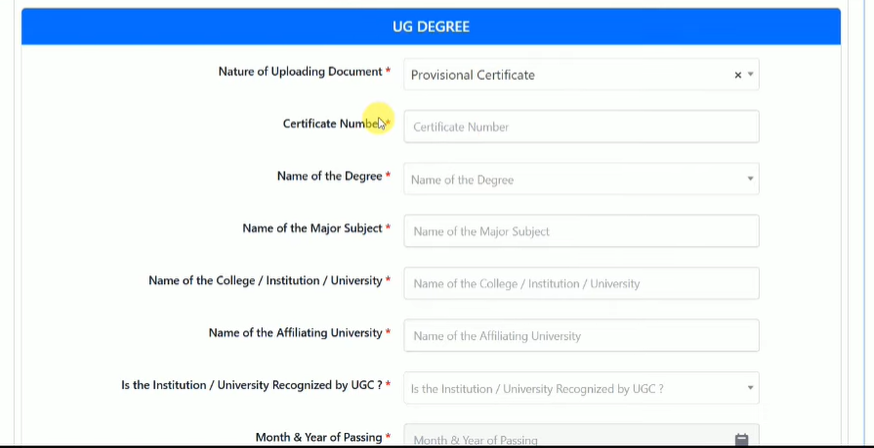
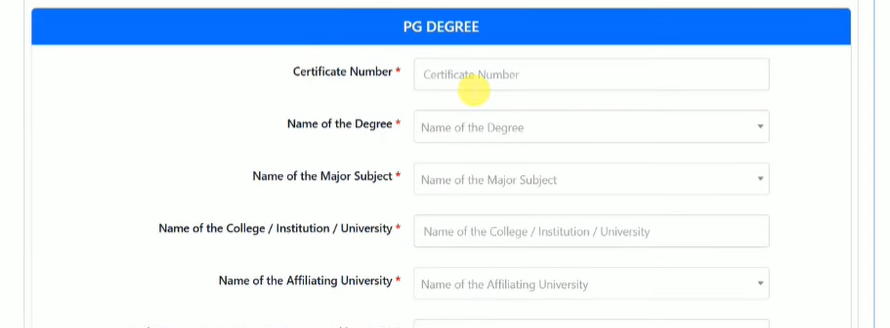
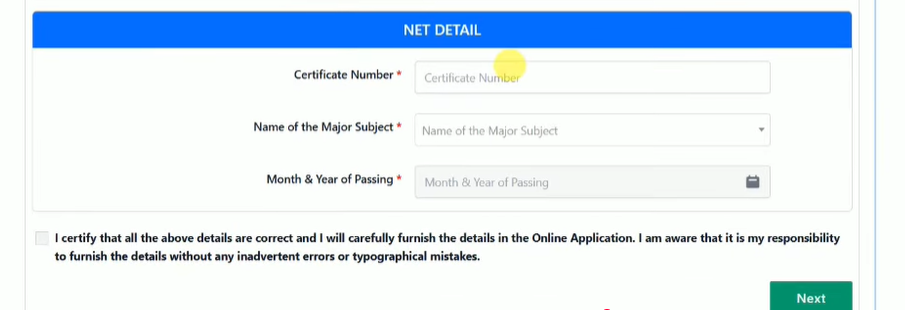
After entering all your educational details, tick the box at the end and click “Next.”
You will then be asked whether you are eligible for PSTM (Physical Sports / Teaching Method) reservation.
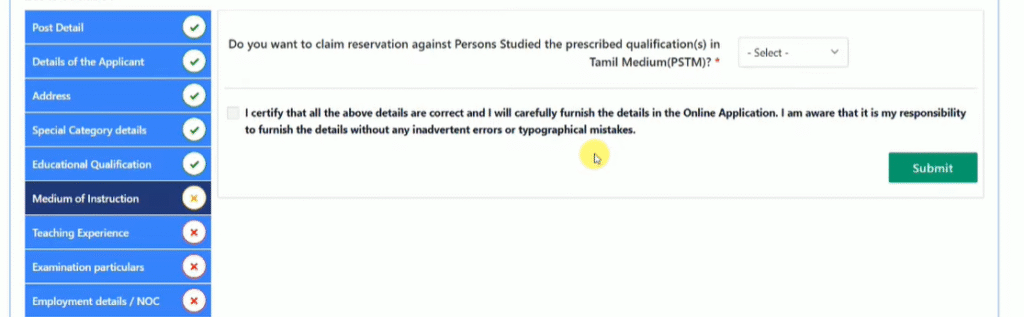
If yes, enter the required details and upload the supporting documents.
Note: PSTM reservation is only eligible for candidates who have completed 1st to 12th standard, UG, and PG in Tamil medium.
If no, simply tick the Terms and Conditions box at the end and click “Submit.”
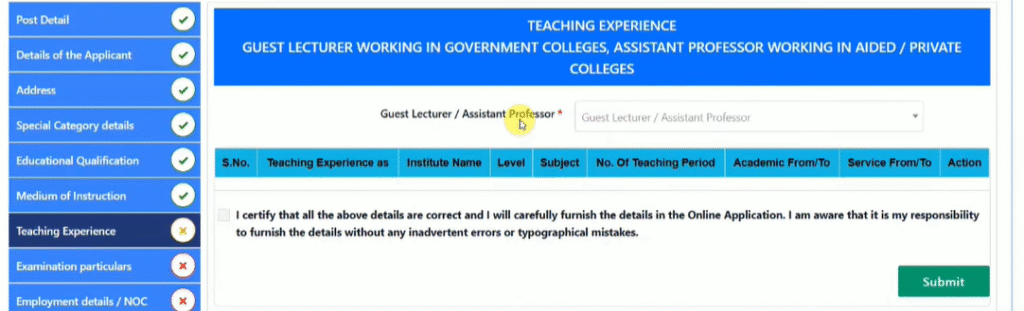
Here, you need to provide your teaching experience details. If you have relevant experience, enter the details; if not, select “No.”
After that, tick the box at the end and click “Submit.”
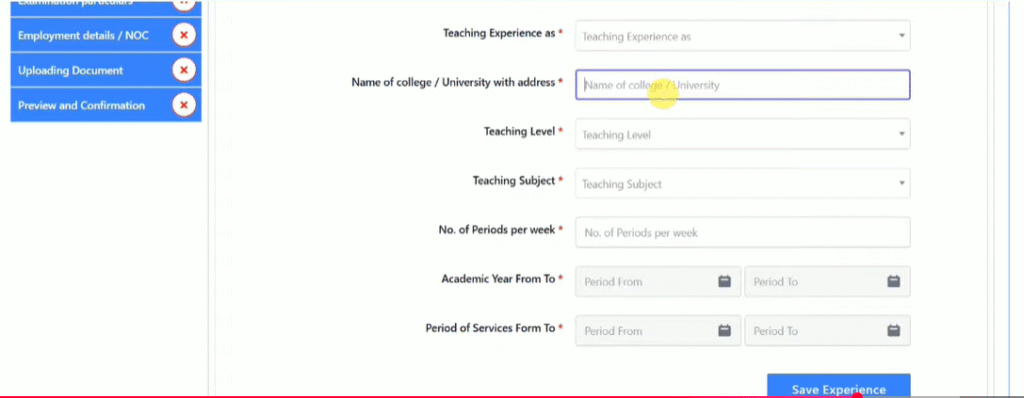
Remember, a maximum of 15 marks will be awarded for teaching experience.
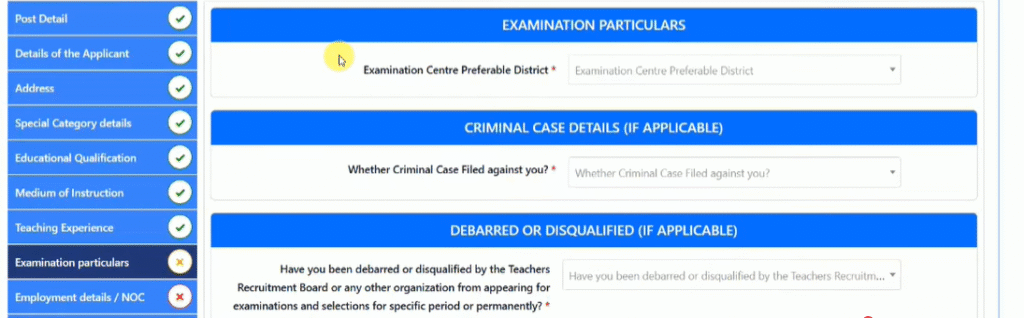
This is an important section where you need to select your examination center district, preferably one near your location.
You will also be asked to declare if you have any criminal cases or if you have been debarred or disqualified from any exam. Select “Yes” if applicable, otherwise click “No.”
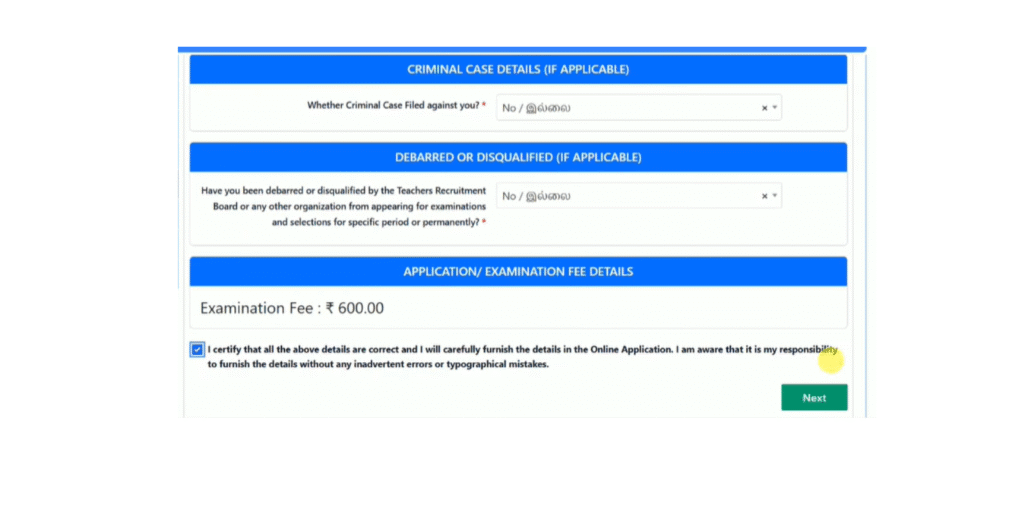
Tick the box at the end and click “Next.”
Next, you will be asked if you are currently working in any government organization. If yes, enter the required details.
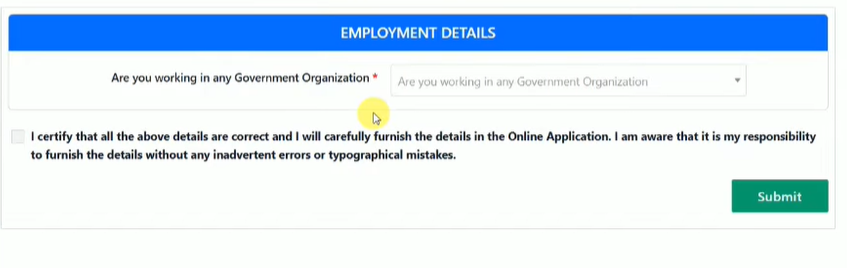
If not, select “No,” then tick the box at the end and click “Submit.”
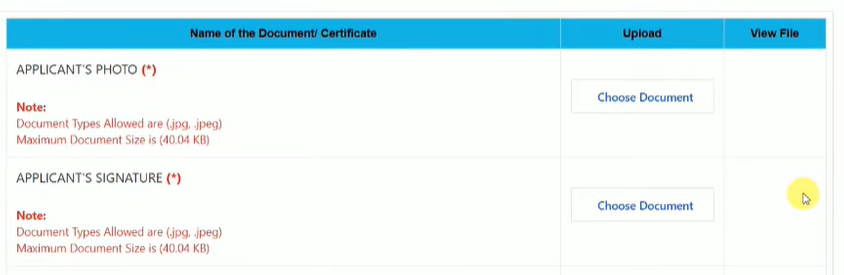
Next is the Document Upload section. Here, you need to upload the following:
- Photograph – less than 40 KB
- Signature – less than 40 KB
- Community Certificate – PDF format
- SSLC Certificate – PDF format
- HSC Certificate – PDF format
- UG Certificate – PDF format
- PG Certificate – PDF format
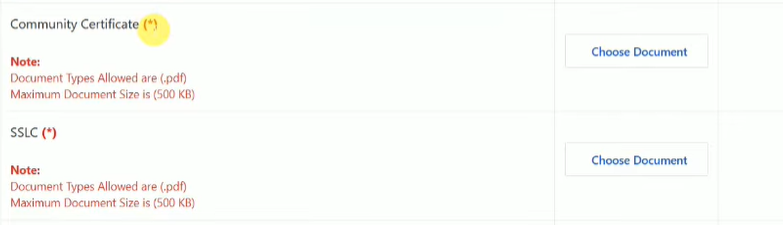
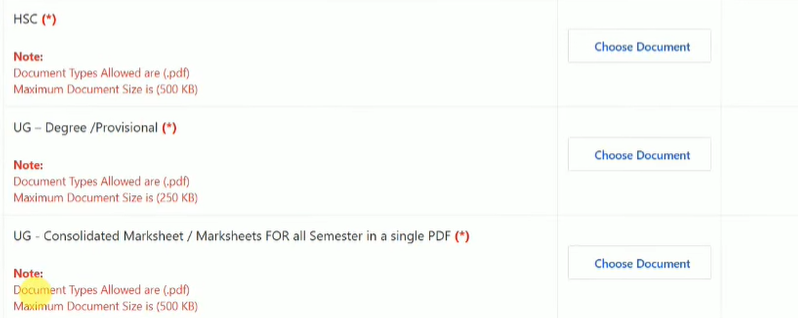
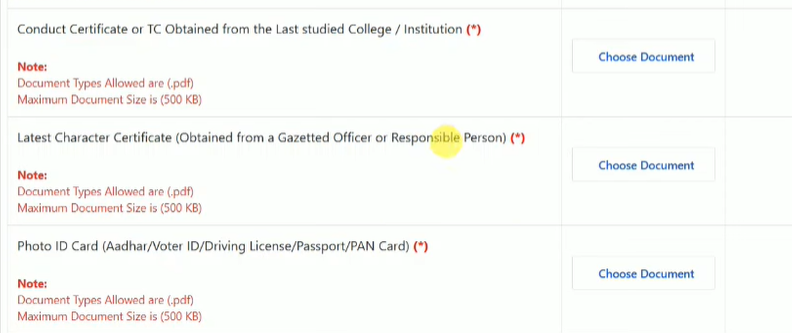
After uploading all the required documents, tick the box at the end and click “Next.”

After this, the Preview Page will open. Here, you need to tick all 11 Terms and Conditions boxes.
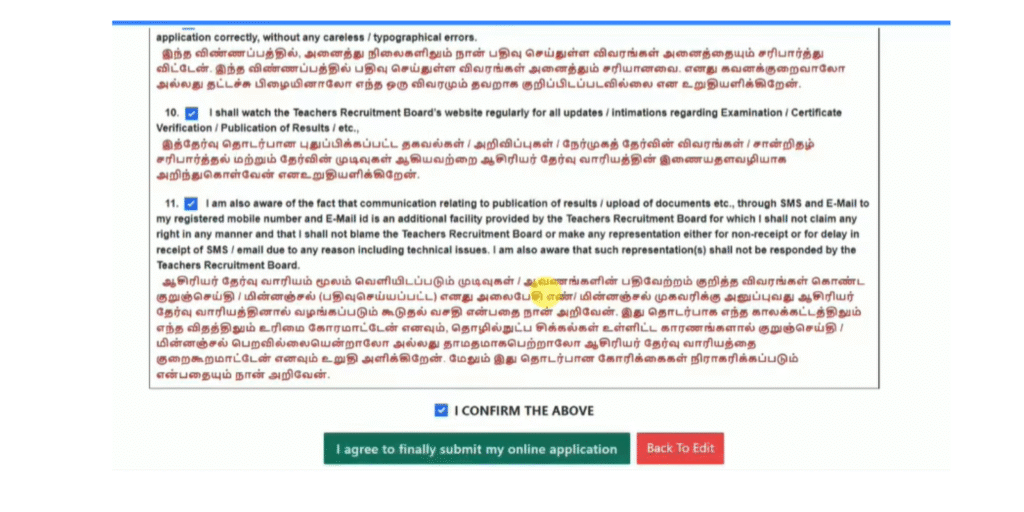
Finally, tick the “I confirm the above” box, then click “I agree to finally submit my online application.”
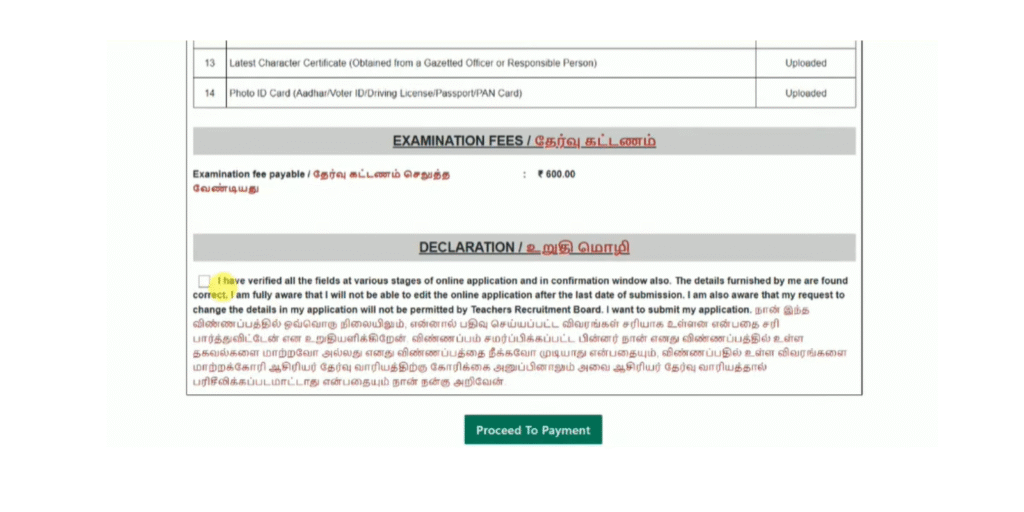
You will see the Preview Page again. Check all the information carefully, then click the Declaration section and tick “I confirm the above.”
If you need to make any changes, you can go back and edit the details at this stage. Otherwise, click “Yes, I agree” on the popup to proceed.
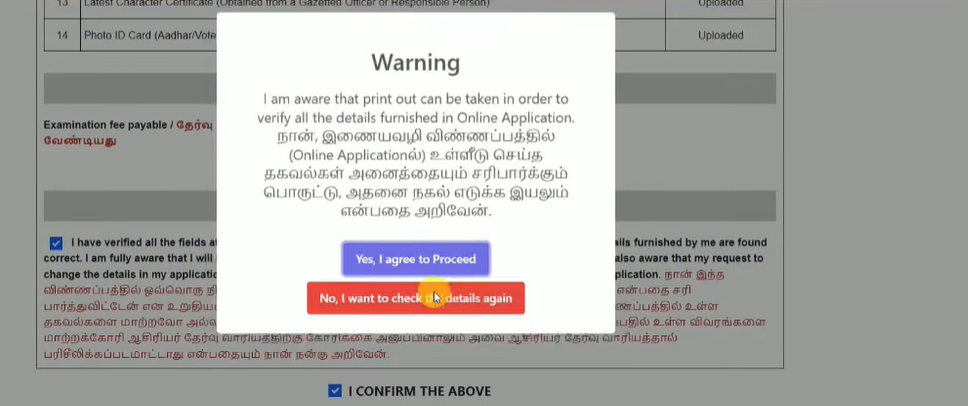
After that, you will be redirected to the Payment Page. Tick the Declaration box and proceed to complete your payment.
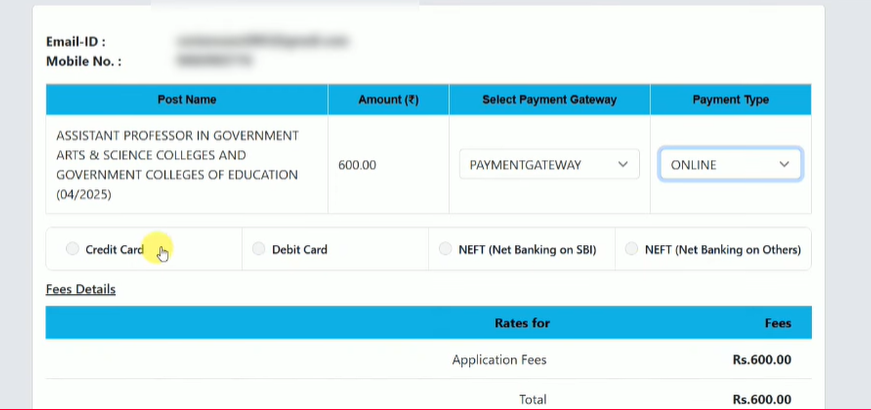
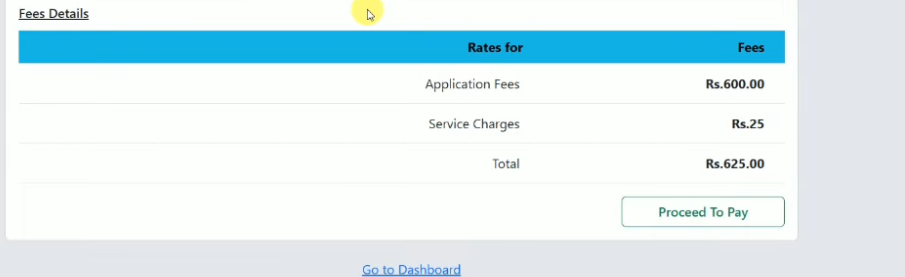
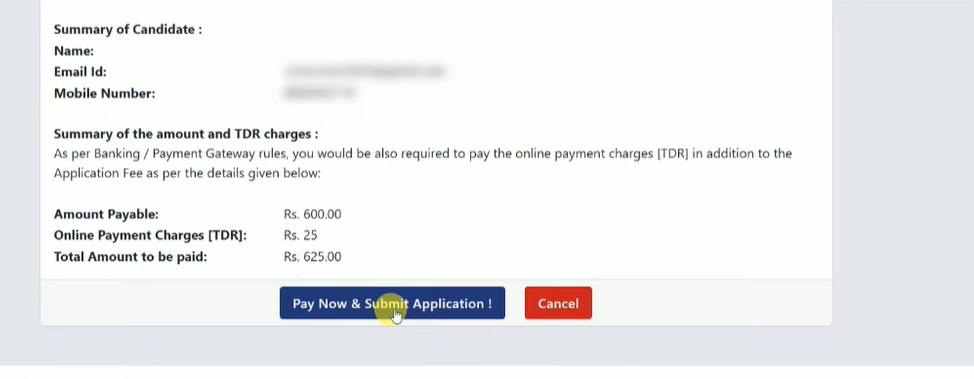
Click “Pay Now” to complete your payment and submit your application.
That’s it! Your registration is complete, and your application form will be generated. Save it for future reference.
We hope, as an aspirant, you have followed this blog step by step and successfully filled your application form.
If you want to join TN TRB Assistant Professor Exam coaching, Professor Academy is the best institute for you. We offer:
- Subject courses with revision classes, daily tests, test series, and mock tests
- Tamil Eligibility classes with assessments
- Guidance on how to prepare for Paper 2 (Descriptive Type)
Don’t delay — now is the right time to join our best TRB coaching.
For more details:
Join Our TN TRB Assistant Professor Coaching
Mail:
enquiry@professoracademy.com
Call: +91 7070701009 | +91 7070701005 | +91 8807108794 | +91 8124408794