
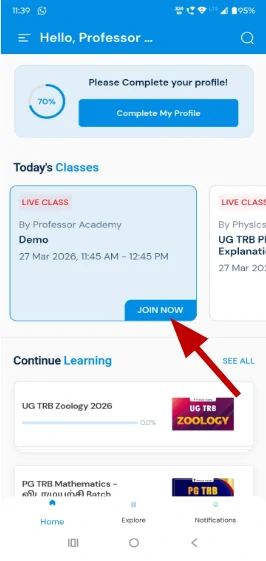
Click on “Home”, scroll to “Today’s Classes”, click on your live class, click on “Join Now”, allow permissions, and attend the live class.
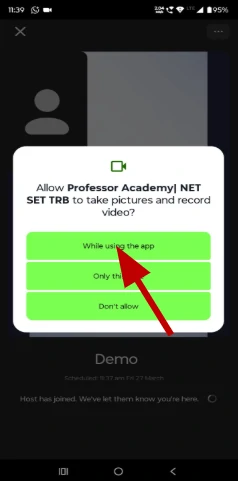
Click on “While using the app” to allow camera permission and continue joining the live class.
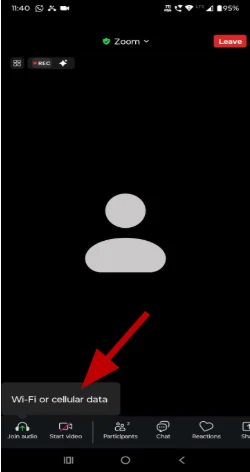
Click on “Join audio” and select Wi-Fi or cellular data to start hearing the live class.
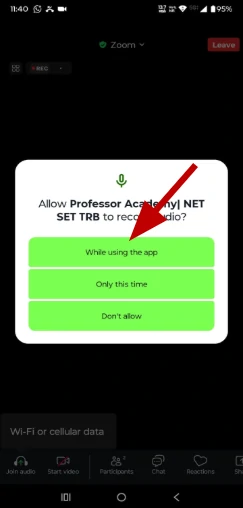
Select “While using the app” to allow microphone access.
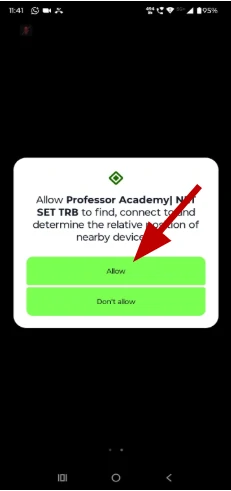
Tap “Allow” to enable device connection permission.
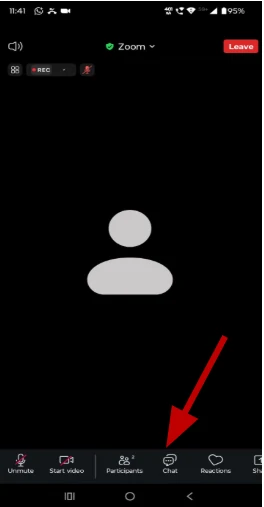
Tap the Chat icon () at the bottom, type your message, and press send.
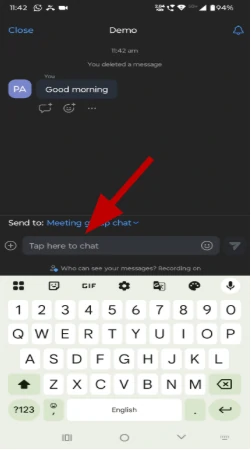
Type your message in the chat box and tap the send button to post it to the meeting group chat.
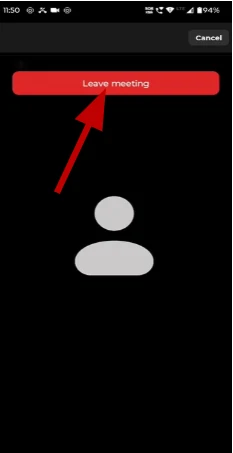
Tap the Leave button at the top right corner to exit the meeting.
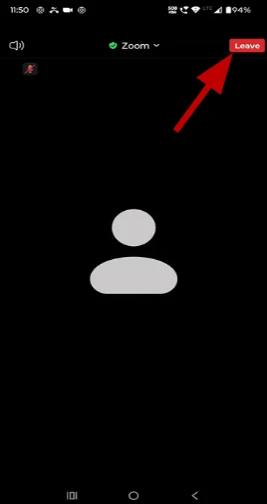
Click on ‘Leave Meeting’ to exit the session

Hi!
