🎉 Explore Our Pooja Holidays Offer – from October 19 to 22!
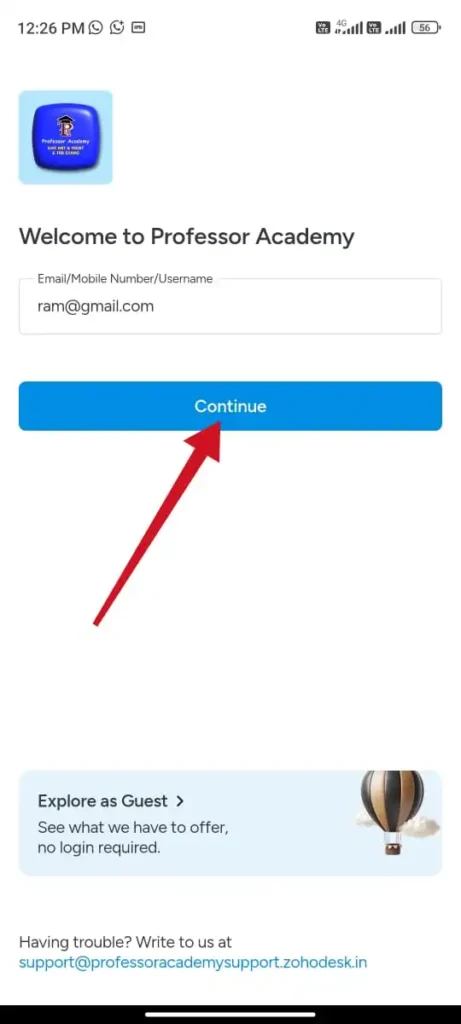
Step 1
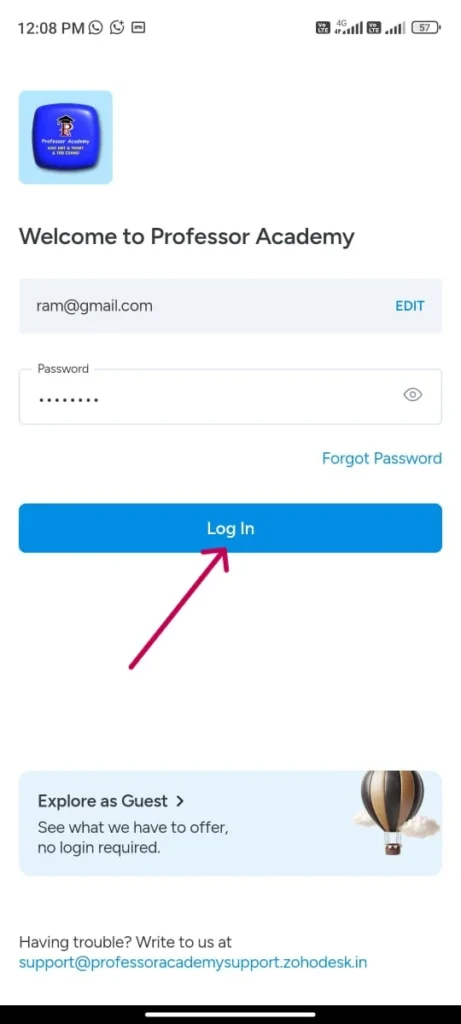
Step 2
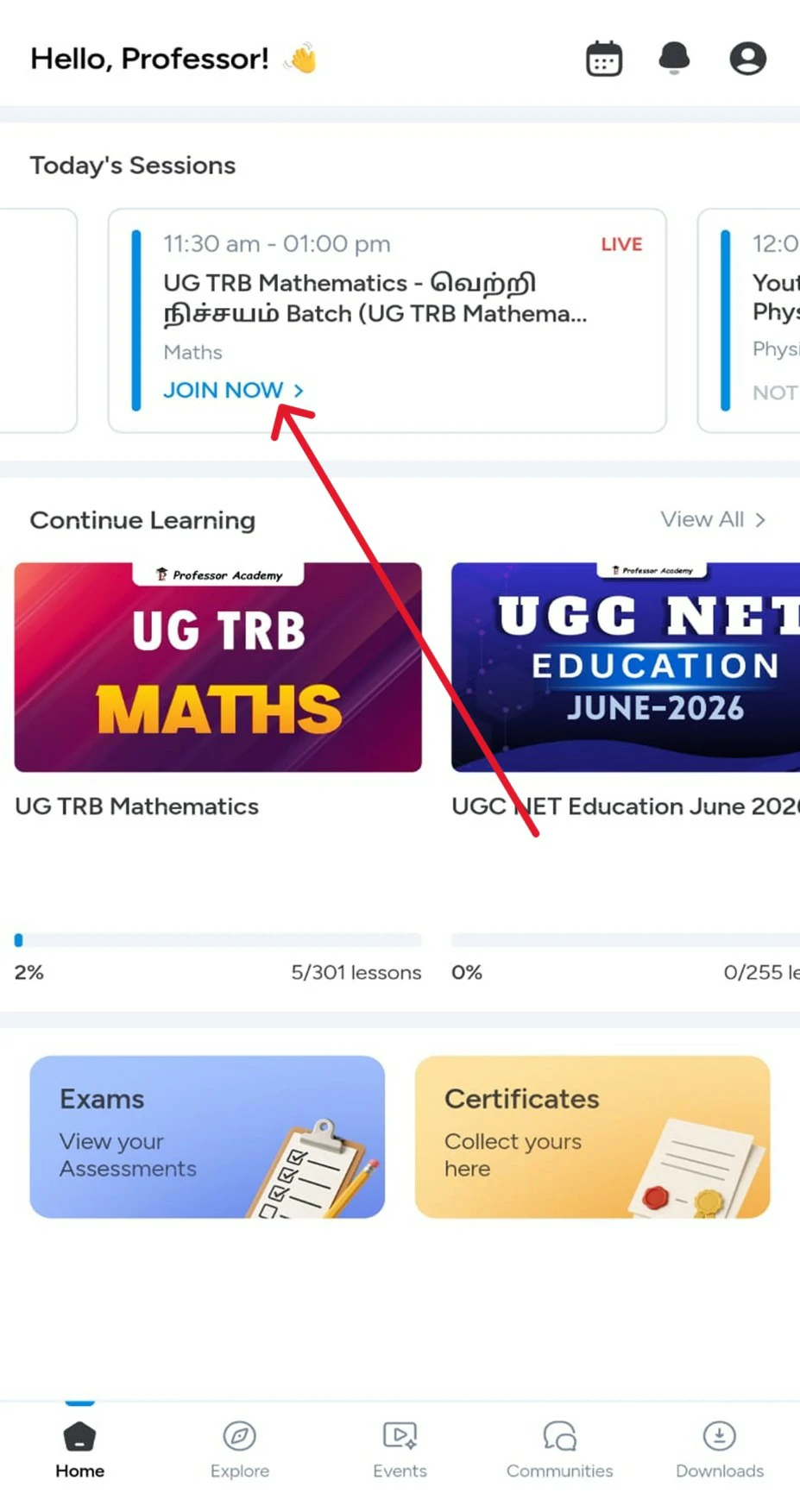
Click on “Home”, scroll to “Today’s Classes”, click on your live class, click on “Join Now”, allow permissions, and attend the live class
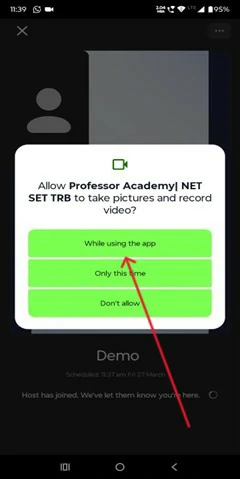
Step 3
Click on “While using the app” to allow camera permission and continue joining the live class
Step 4
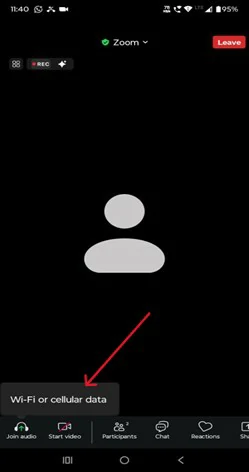
Click on “Join audio” and select Wi-Fi or cellular data to start hearing the live class
Step 5
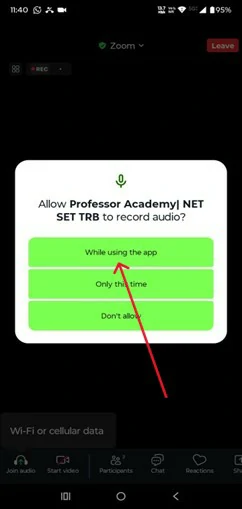
Select “While using the app” to allow microphone access
Step 6
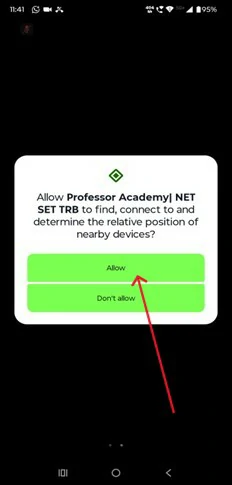
Tap “Allow” to enable device connection permission
Step 7
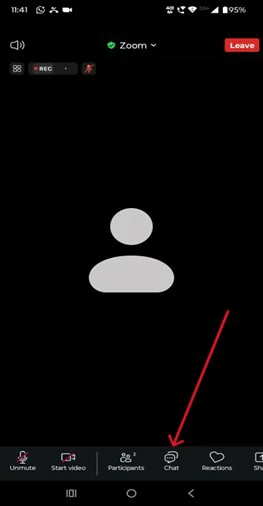
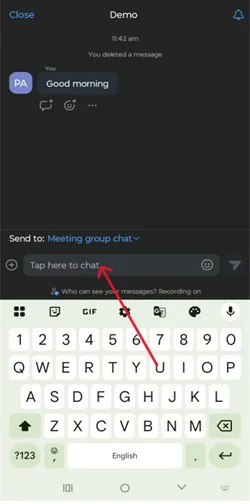
Tap the Chat icon (💬) at the bottom, type your message, and press send
Step 8
Type your message in the chat box and tap the send button to post it to the meeting group chat
Step 9
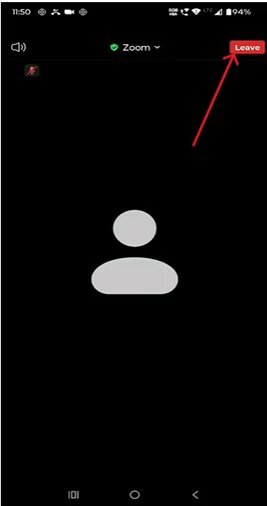
Tap the Leave button at the top right corner to exit the meeting
Step 10
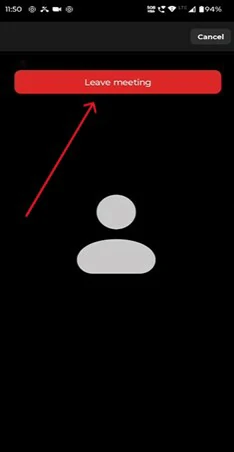
Click on ‘Leave Meeting’ to exit the session
Hi!
50% Concession for PWD & Transgender Aspirants
Fill out the form now and claim your 50% concession!